
These instructions apply to the Luna 6410, 6415, and 6435 products.
These instructions can also apply to the ODiSI 6000 series instruments, although the software package needed will be the ODiSI installer, not the 6415 installer package.
Step 1: Copy the .iso file of the installer to the laptop. A convenient place to put it is either on the desktop or in the bin folder.
Step 2: Right-click on the .iso file and select “Properties”
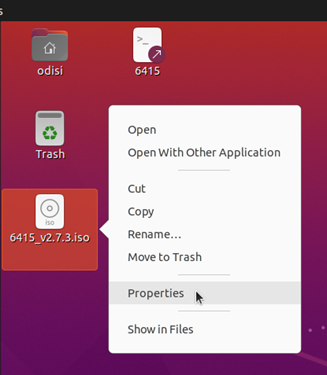
Step 3: Within the properties dialog box there are three tabs. In the “Permissions” tab, ebsure that “Allow executing file as program” is checked. In the “Open With” tab, ensure that the default application is “Disk Image Mounter”.
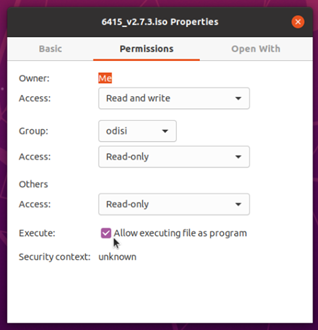
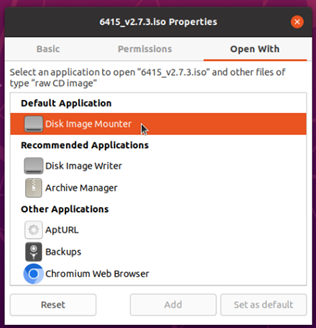
Close out of the dialog box by clicking the red X in the upper right corner.
Step 4: Double-click on the .iso file. A dialog box will pop up telling you that the .iso file contains software intended to be automatically started. Click “Run”.
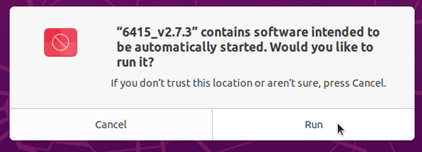
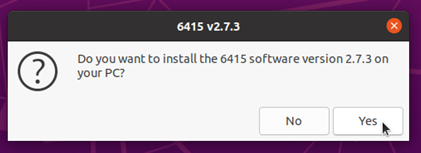
Step 5: A dialog box will pop up asking if you want to install the software on your PC. Click “Yes”.
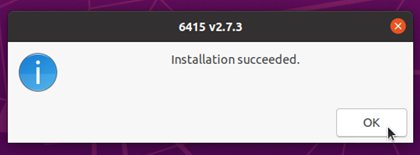
Once the installation has successfully complete, a dialog box will pop up informing you of this. Click “OK”.
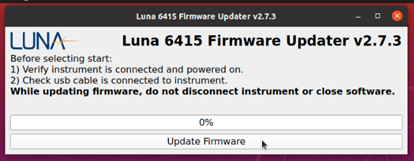
Step 6: The firmware updater will launch automatically. Follow the on-screen instructions and then click “Update Firmware”.
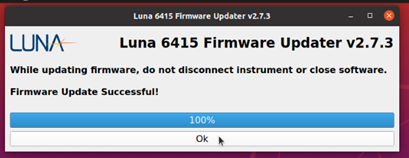
Step 7: The firmware update will run. This will take several minutes to complete. When complete, it will display a message saying Firmware Update Successful. Click “Ok”.
Your software and firmware have now been updated to the new software version. You can run the software by double-clicking on the 6415 icon on the desktop.
Comments
0 comments
Please sign in to leave a comment.